October 26th, 2014 by Adam Najmanowicz | 51 Comments
If you?re reading this, chances are you?ve probably read about the ways of putting scripts in the Content Editor ribbon or Context Menu. Those are some simple and quick ways of extending the Sitecore UI to do quick actions accessible for your users without them having to even know about the existence of PowerShell in your system. Up until now however we?ve not been very vocal about the fact that those does not really have to be quick one-off actions but they can indeed form a broader solution to your problem through the use of persistent, named sessions. In fact Sitecore PowerShell Extensions (SPE) allow you to manage sessions and decide that it should stay in memory after the script have executed. In fact SPE does quite a bit of session maintenance itself that you might want to be aware of.
What do I really need to know about script sessions?
ScriptSession is an object that encapsulates a PowerShell Runspace. Whenever you decide to run a script 2 things will happen:
a ScriptSession is requested from the SessionManager (which either creates a new session or recovers an existing named session)
after which it?s being used to execute your script in either the current thread or a new Sitecore Job is being instantiated and the Script session is passed to it for execution.
This is decided internally based on what you?re using a Session for unless you?re instantiating it directly (like described in this post) in which case you?re responsible for disposing it.
After the script is executed and the Job has ended the session is discarded unless your script has a Persistent Session ID which I will show you how to define in just a moment.
Great so there are sessions? but what are they good for?
October 25th, 2014 by Adam Najmanowicz | 75 Comments
Creating reports is probably a task that every developer dread. I for once always felt like listening to Tennessee Ernie Ford?s ?16 Tons? every time when I was supposed to do it for yet another project audit ? especially this part resonated with me:
I was born one mornin’ when the sun didn’t shine
I picked up my shovel and I walked to the mine
I loaded sixteen tons of number nine coal
And the straw boss said “Well, a-bless my soul”
While the Advanced System Reporter gets you a long way, I’ve found that there were still many scenarios where I would have to write the reports by hand. Madness? Fast forward to Sitecore PowerShell Extensions (or SPE for short) it actually this doesn?t have to be like that and creating reports can be both quick and fun ? provided you?re going to use the module.
October 12th, 2014 by Adam Najmanowicz | 165 Comments
Reading some of the blogsfrom the Sitecore community I find it pretty apparent that we didn?t do a great job advocating the optimizations that PowerShell Extensions have introduced for working with Sitecore items. This blog attempts to rectify this problem to a degree.
How do I retrieve my Sitecore items the PowerShell way?
The most natural way to retrieve Sitecore items is with use of Get-Item and Get-ChildItem commandlets. That is because those 2 commandlets add a PowerShell wrapping around them that allows the functionalities that I?m going to describe in the next section of this blog after I?ll tell you all about retrieving items.
If you have retrieved your item directly using the Sitecore API you can still add the nice wrapper when you pipe them through the Wrap-Item commandlet as well. Some of those enhancements work in the older versions of PowerShell Extensions but I would encourage you to upgrade to the latest version (2.7 at the time this blog was written) to leverage the full potential of the environment.
October 10th, 2014 by Adam Najmanowicz | 177 Comments
I?ve been meaning to write this article for quite a while since the functionality to remote into the Sitecore environment exists in the module at least for at least a couple of versions now and the recent email from one of the Sitecore PowerShell Extensions users convinced me this cannot wait any longer.
When would I remote into my Sitecore instance?
You would probably need this as part of your Continuous Integration or installation scripts. If you need to manipulate Sitecore data from your deployment script remoting is the right solution for you.
How is that special?
We have a a number of web services that could somewhat achieve this functionality for even longer but I didn?t consider those sufficient since a real remoting functionality cannot be limited to just passing text results from the scripts passed but rather should enable the script writers to achieve true interactions between scripts running locally and the scripts that are being executed on the server.
To enable remoting on your Sitecore instance you don?t really have to do anything the web services are already deployed when you install Sitecore PowerShell Extensions. On your local machine all you need to do is include the commandlets in the script that you can find at the following path in your Sitecore instance if you’re using SPE versions older than 2.8:
I?ve decided to 1-up the game from my previous post and zip something that isn?t really a real file but rather a blob in a Sitecore database. The script below is based heavily on the last post but instead of just zipping content of a flat folder traverses the Sitecore item tree and zips all files beneath the current folder.
There was a breaking change in the Console 2.1, if you’re using version 2.1 or newer use Download-File commandlet instad of the “Get-File” as shown in the code below.
You might have have found yourself hunting around in the Sitecore interface for something that would allow you to download all the the log files in a fast and convenient way once time or another. Have you found one? Me neither? but luckily I had the PowerShell console installed on my server so I started looking for a script to zip all files in a folder and luckily because we have a full PowerShell power in the box I could stand on the shoulders of giants and get the zipping part from Stack Overflow ? again (which is the majority of my script. The rest was super easy ? just call the function and download the file?
The only meaningful lines other than the copied function that I needed to use was calling it (?ZipFiles? – naturally) and then calling the new commandlet Get-File (that was added in the version 2.0 of the console). Obviously it?s good to let the user know what?s going on and cleaning up after yourself ? hence the furniture code around those.
###########################################################################
#                                                                         #
# The script zips all log4Net files and allows users to download the zip. #
# It will show errors for logs currently opened by Sitecore for writing.  #
#                                                                         #
###########################################################################

#
# The ZipFiles function is based on noam's answer
# on the following Stack Overflow's page: http://bit.ly/PsZip
#
function ZipFiles( $zipArchive, $sourcedir )
{
    [System.Reflection.Assembly]::Load("WindowsBase,Version=3.0.0.0, `
        Culture=neutral, PublicKeyToken=31bf3856ad364e35") | Out-Null
    $ZipPackage=[System.IO.Packaging.ZipPackage]::Open($zipArchive, `
        [System.IO.FileMode]::OpenOrCreate, [System.IO.FileAccess]::ReadWrite)
    $in = gci $sourceDir | select -expand fullName
    [array]$files = $in -replace "C:","" -replace "\\","/"
    ForEach ($file In $files) {
        $fileName = [System.IO.Path]::GetFileName($file);
            $partName=New-Object System.Uri($file, [System.UriKind]::Relative)
            $part=$ZipPackage.CreatePart("/$fileName", "application/zip", `
                [System.IO.Packaging.CompressionOption]::Maximum)
            Try{
                $bytes=[System.IO.File]::ReadAllBytes($file)
            }Catch{
                $_.Exception.ErrorRecord.Exception
            }
            $stream=$part.GetStream()
            $stream.Write($bytes, 0, $bytes.Length)
            $stream.Close()
    }
    $ZipPackage.Close()
}

# Get Sitecore folders and format the zip file name
$dateTime = Get-Date -format "yyyy-MM-d_hhmmss"
$dataFolder = [Sitecore.Configuration.Settings]::DataFolder
$logsFolder = [Sitecore.Configuration.Settings]::LogFolder
$myZipFile = "$dataFolder\logs-$datetime.zip"

# Warn that the used log files will fail zipping
Write-Host -f Yellow "Zipping files locked by Sitecore will fail." -n
Write-Host -f Yellow "Files listed below were used."

# Zip the log files
ZipFiles $myZipFile $LogsFolder

#Download the zipped logs
Get-File -FullName $myZipFile | Out-Null

#Delete the zipped logs from the server
Remove-Item $myZipFile
PS. The hardest part of the blog was to find and theme a nice image for it
Last night I needed to reproduce really quickly a site structure we will be moving from another CMS and create a matching item hierarchy in my Sitecore instance… I could face an hour or so of boring clicking and copying and pasting and hoping I’ve not missed anything or… I could write a short PowerShell script to do the work for me… Guess which path I chose?
Before you use the script you should customize the script parameters:
$sitemapUrl – url of the sitemap of the site you want to clone
$prefix – wither site root or a branch you want to copy
$postfix – if a site has postfixes like .php or .aspx you want to get rid of – define it here
$itemTemplate – the template that should be used for items the script will create
Or just run the script and enjoy the glorious cognifide.com page structure reproduced in your Sitecore… now how cool is THAT!?
Kieranties must be the biggest PowerShell nerd (together with yours truly) I?ve had a privilege to chat with (I guess this implies I talk to myself?). So it shouldn?t be a surprise when the two started talking PowerShell/Sitecore pixie dust started sparkling.
This time ? events integration.
What does it take to integrate PowerShell with Sitecore events?
This is a fairly easy task that Sitecore pretty thoroughly describes in the ?Using Events? SDN article. So there is little point for me to reiterate it here.
The integration requires to add some entries to the include files. I?ve added definitions for most of the item related events to the Cognifide.PowerShell.config file, but commented them out, because I don?t want you to have any performance penalty associated with the PowerShell Console installation and by default it has some scripts defined for you to try out.. All you need to do to enable it is to uncomment the <events> section of the config file and scripts will start firing up.
Implementation is pretty straightforward – the console has well defined place within its script libraries where your scripts should be placed:
One thing I always wanted to add to the Cognifide PowerShell Console for Sitecore but never had the chance to investigate properly, was GUI and user interaction. For example in a regular PowerShell console when an irreversible action needs to be taken or one that user needs to be notified about ? a question is asked:
Unfortunately due to the stateless and non-persistent nature of HTTP connections this is not easily achievable in Sitecore Sheer environment especially since in our case a PowerShell session usually lives in a separate thread within a Sitecore Job.
I knew this had to be achievable as Sitecore allows for rich interaction with user e.g. during a package installation process but I could not find any documentation regarding this subject, and my Sitecore gurus? posts were pretty discouraging in that regard:
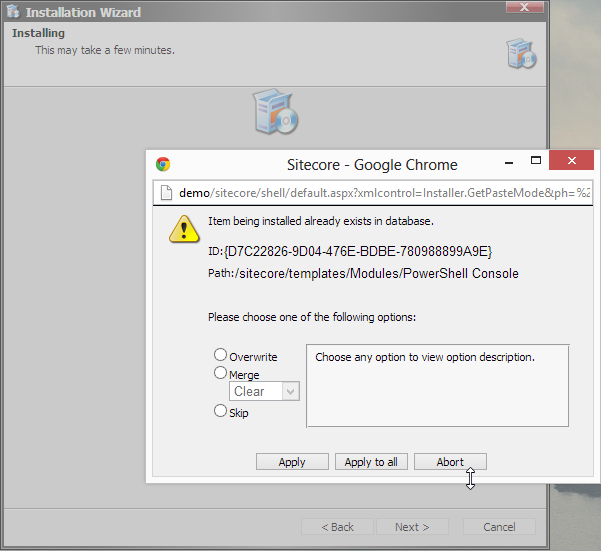
But heck(!) Somehow the package Installer manages to show those pesky Overwrite/Merge/Skip dialogs, right?
Not discouraged by the early discoveries, I?ve dusted my trusty copy of Reflector and dived inside the installer code. Following are the findings of my investigations and sample solutions for using them with your Jobs.
One thing I always wanted to add to the Cognifide PowerShell Console for Sitecore but never had the chance to investigate properly, was GUI and user interaction. For example in a regular PowerShell console when an irreversible action needs to be taken or one that user needs to be notified about ? a question is asked:
Unfortunately due to the stateless and non-persistent nature of HTTP connections this is not easily achievable in Sitecore Sheer environment especially since in our case a PowerShell session usually lives in a separate thread within a Sitecore Job.
I knew this had to be achievable as Sitecore allows for rich interaction with user e.g. during a package installation process but I could not find any documentation regarding this subject, and my Sitecore gurus? posts were pretty discouraging in that regard:
But heck(!) Somehow the package Installer manages to show those pesky Overwrite/Merge/Skip dialogs, right?
Not discouraged by the early discoveries, I?ve dusted my trusty copy of Reflector and dived inside the installer code. Following are the findings of my investigations and sample solutions for using them with your Jobs.
Warning: Use of undefined constant php - assumed 'php' (this will throw an Error in a future version of PHP) in /home/users/najmanowicz/public_html/najmanowicz_www/wordpress/wp-content/themes/404-at-ie7/sidebar.php on line 60
 If you?re reading this, chances are you?ve probably read about the ways of putting scripts in the Content Editor ribbon or Context Menu. Those are some simple and quick ways of extending the Sitecore UI to do quick actions accessible for your users without them having to even know about the existence of PowerShell in your system. Up until now however we?ve not been very vocal about the fact that those does not really have to be quick one-off actions but they can indeed form a broader solution to your problem through the use of persistent, named sessions. In fact Sitecore PowerShell Extensions (SPE) allow you to manage sessions and decide that it should stay in memory after the script have executed. In fact SPE does quite a bit of session maintenance itself that you might want to be aware of.
 Loading...
 the module.





 (3 votes, average: 4.67 out of 5)